Render settings
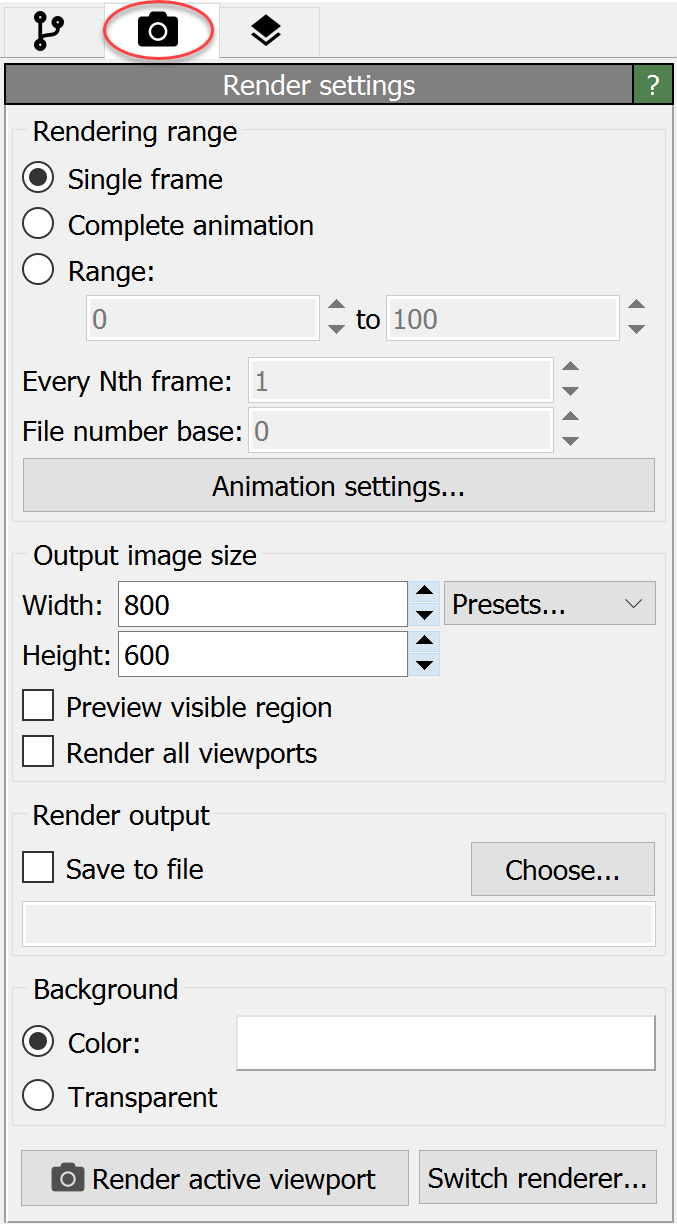
This panel contains general settings related to image and movie rendering, e.g. resolution, output filename, background color, etc. It is found on the Rendering tab of the command panel as depicted in the screenshot.
To start an image/movie rendering process, use the Render active viewport button located at the bottom of the panel or the button in the toolbar located above the viewports. OVITO will always render the currently active viewport, which is indicated by a yellow border. Right-click in a viewport to make it the active one.
By default, rendered images are displayed in the so-called frame buffer window after rendering is complete, but they are not automatically saved to disk. That means they will be lost as soon as you close the frame buffer window or quit OVITO. To save rendered images, you can either use the Save to file function found in the toolbar of the frame buffer window after rendering is complete or activate the Save to file option in advance in the Render settings panel, which is described below.
When rendering a movie note that the total length of the animation and the playback speed (frames per second) are set in the animation settings dialog, which can be opened using the Animation settings button.
Parameters
- Rendering range
Selects which animation frame(s) to render. If you decide to render an animation, i.e. a range of frames, make sure you also turn on the Save to file option and set an output filename below. Otherwise, the rendered animation will not get permanently saved to disk.
- Every Nth frame
This value determines which fraction of animation frames is actually rendered. Setting this parameter to 1 renders every animation frame. A value of 2 will render only every other frame, etc. Thus, you can use this to reduce the number of generated video frames in case of extremely long simulation sequences.
- File number base
When saving the frames of the animation as a series of image files (rather than a single movie file), OVITO automatically appends the frame number to the output filename. This setting lets you specify another base file number, i.e. an offset. This can be useful if you want to collect the video frames from several animation sequences in one directory and later combine them into one contiguous movie using an external video encoding software.
- Output image size
Sets the width and height of the rendered image or movie in pixels. Note that you can activate the preview mode for an interactive viewport window to see exactly which rectangular area of the viewport will be visible in the final output image.
- Preview visible region
This option activates preview mode for the current viewport window, which means it will display a rectangular frame indicating the area that will be visible in the rendered output image. The aspect ratio of the rectangular guide is determined by the output image width and height.
- Render all viewports pro
Activate this option to generate a composed output image with multiple side-by-side views of your 3d scene. The arrangement of the views is determined by the current layout of the interactive viewport windows. Note that you can modify the number, size and layout of the viewports by dragging the vertical and horizontal lines separating the viewport windows.
- Save to file
This option tells OVITO to save the rendered image or movie to disk in addition to displaying it in the frame buffer window. Use the Choose… button to pick an output filename. When rendering an animation sequence, all animation frames will be written to a single movie file if you pick a video format such as AVI or MPEG (see Video encoding). If you choose an image format (e.g. PNG, JPEG), OVITO will instead produce a sequence of image files, one per frame. In this case, the frame number will automatically be appended to the base filename you provide. Alternatively, if the filename contains a “*” wildcard character, it will be replaced by the frame number.
- Background
You can choose between a uniform background color and a transparent background. In the latter case, OVITO will make those areas of the output image transparent that are not covered by any objects. This is useful if you intend to put the image in front of some other background later, for instance on a presentation slide. Note that transparency information (alpha channel) must be supported by the output format for this to work. Best choice is the PNG file format.
- Switch renderer
Use this button to select a different rendering engine. OVITO Pro offers several rendering engines, which differ in terms of visual quality and rendering speed. See the Rendering page for a list of options. Each rendering engine has specific parameters and settings, which are displayed in the separate panel below the Render settings panel.
Visual effects
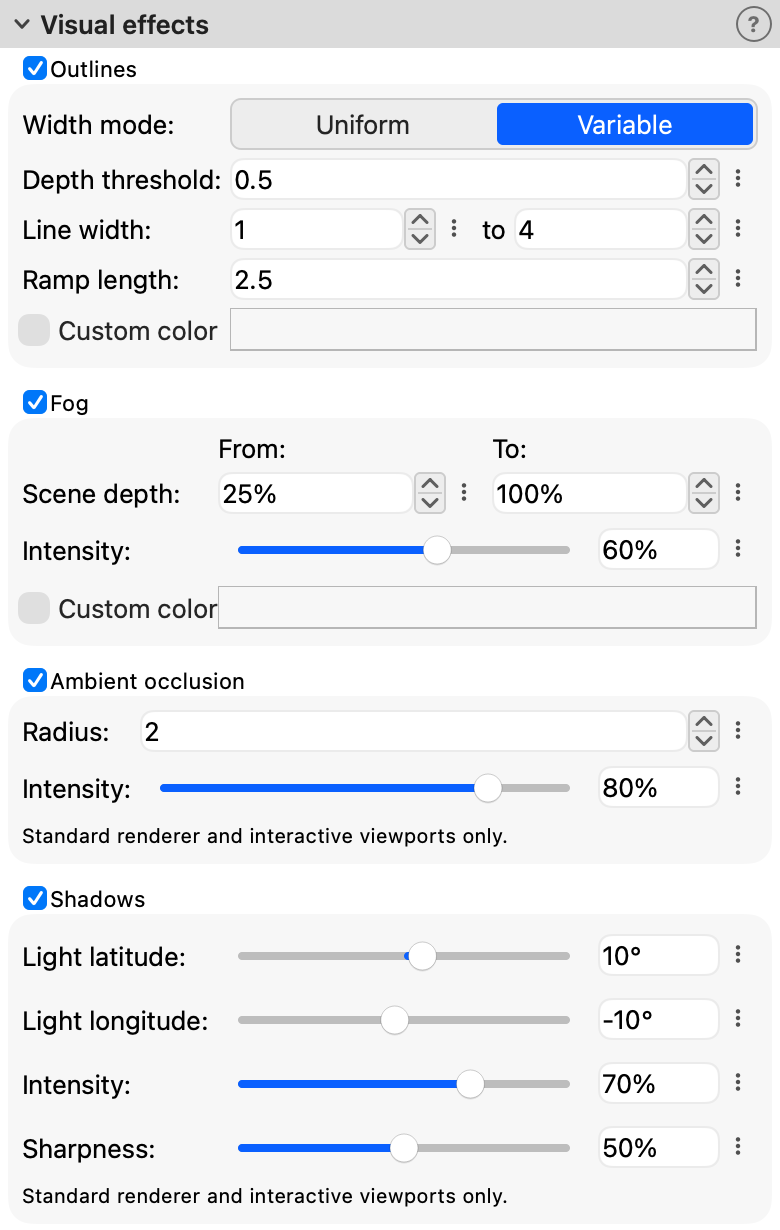
These effects enhance the depth perception in rendered images and in the interactive viewports. Because they are not specific to any one rendering engine, they are configured here and are preserved when you switch to a different engine. Outlines and fog are supported by all rendering engines; ambient occlusion and shadows are only used by the Standard renderer, because the raytracing engines compute these effects themselves.
- Outlines
Enables the drawing of outlines along object edges. The outlines are depth-aware, meaning that they are only drawn when the depth difference between two overlapping objects exceeds a certain threshold. Optionally, the width of the outlines can be adjusted based on the depth difference, which can help to improve visibility of outlines in complex scenes.

Outlines in the interactive viewport.

Outlines in the rendered image.
- Width mode
Uniform draws all outlines with the same line width. Variable makes outlines wider the larger the depth difference between the surfaces on either side of an edge, which emphasizes the silhouettes of objects that stand out far in front of the objects behind them.
- Depth threshold
Outlines are only drawn along edges where the depth difference between the adjacent surfaces exceeds this value, which is specified in the length units of the simulation. Increase it to suppress outlines between objects that touch or overlap, e.g., between bonded atoms.
- Line width
The width of the outlines in pixels. In Variable mode, you specify two widths: the width of outlines at the depth threshold and the maximum width reached at the end of the ramp.
- Ramp length
Only used in Variable mode. The outline width increases linearly from the first to the second line width as the depth difference grows from the depth threshold to the depth threshold plus the ramp length. Outlines along edges with even larger depth differences keep the maximum width. A ramp length of zero draws all outlines with the maximum width.
- Custom Color
When disabled, the outline color is automatically determined based on the background color: white outlines for dark backgrounds and black outlines for light backgrounds. When enabled, the manually selected color is used instead.
- Fog
Enables depth cueing: objects are gradually blended into the fog color with increasing distance from the viewer, which makes it easier to perceive the depth arrangement of objects in dense three-dimensional structures. By default, the fog takes on the background color, so that distant objects fade into the background. The effect applies to all objects of the three-dimensional scene, including semi-transparent ones; viewport layers and other two-dimensional overlays are not affected.
- Scene depth
The depth range over which the fog builds up. Both values are specified relative to the depth extent of the scene as seen from the camera, i.e., 0% corresponds to the point of the scene’s bounding box nearest to the camera and 100% to the farthest point. Objects in front of the From depth are not affected by the fog. The fog opacity increases linearly up to the To depth, where it reaches the specified intensity. Because the range is defined relative to the scene extent, the effect does not depend on the scale of the model or the camera distance.
- Intensity
The maximum opacity of the fog, which is reached at the To depth and beyond. At 100%, the most distant objects vanish completely in the fog.
- Custom Color
When disabled, the fog color is the background color of the rendered image (or the viewport background color in the interactive viewports when preview mode is off). When enabled, the manually selected color is used instead.
- Ambient occlusion
Enables screen-space ambient occlusion (SSAO), which darkens surfaces in crevices and in the vicinity of other objects. This improves the perception of shape and spatial arrangement, e.g., of densely packed atoms. The effect is computed in real time from the depth information of the rendered image and is also visible in the interactive viewports.
Only the Standard renderer and the interactive viewports use this setting. The raytracing rendering engines compute physically based ambient occlusion themselves and ignore it. Since the screen-space method only knows the frontmost visible surfaces, it is an approximation: semi-transparent objects receive the occlusion of the surfaces behind them, and objects outside of the image do not cast any occlusion.
- Radius
Radius of the neighborhood around a surface point within which other objects cast occlusion onto it, specified in simulation units of length. A value on the order of the particle diameter is usually a good choice.
- Intensity
Strength of the darkening.
- Shadows
Enables shadows cast by a directional light source, which make the spatial arrangement of objects easier to perceive. The light source moves with the camera, maintaining a constant direction relative to the viewing direction, so that the shadows always fall onto visible surfaces. When the effect is enabled, surfaces are shaded according to their orientation relative to this light source. The effect is computed in real time and is also visible in the interactive viewports.
Only the Standard renderer and the interactive viewports use this setting. The raytracing rendering engines compute shadows from their own light sources and ignore it. Semi-transparent objects receive shadows but do not cast any.
- Light latitude, Light longitude
Direction of the light source relative to the viewing direction, specified as two angles. At 0° latitude and 0° longitude, the light source is located directly behind the camera and casts no visible shadows. Positive latitudes (up to 90°) move the light source upward, positive longitudes (up to 180°) to the right. The default direction, 10° above and to the left of the viewing direction, corresponds to the default light source of the raytracing rendering engines.
- Intensity
Fraction of the direct light that is blocked in shadowed regions. At 100%, shadowed surfaces receive only ambient light.
- Sharpness
Sharpness of the shadow edges. Lower values produce soft shadows with wider penumbrae; at 100%, the shadows have hard edges.