Particle-related settings
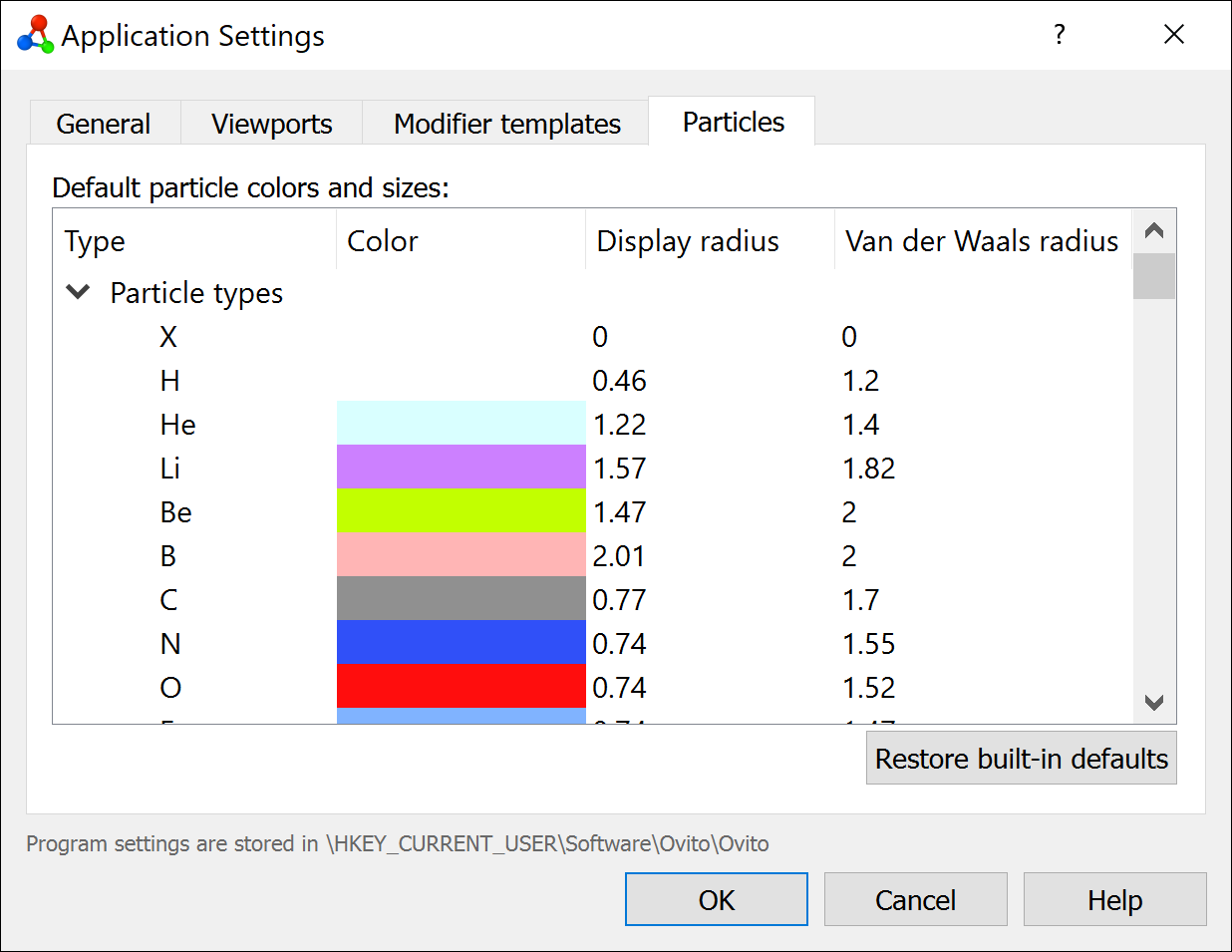
This page of the application settings dialog lets you manage the program’s presets for particle colors and radii.
Default particle colors and radii
When importing a simulation file, OVITO automatically assigns standard colors and radii to particle types based on their name. This happens, in particular, for known chemical elements such as “He”, “Fe”, or “Si”. The table shows the predefined association of named particle types with corresponding default colors, display radii, and van der Waals radii. You can edit the values if needed. OVITO will remember these default values across program sessions and apply them to newly imported structures.
Note that you can also set new default values for individual particle types in the Edit types modifier panel, where you typically configure the appearance of element types after importing a simulation file.
Press the Restore built-in defaults button to reset all colors and radii back to the hard-coded factory default values of OVITO and discard any customizations you have made.
Exporting and importing themes
You can share your customized particle type colors and radii with other users or transfer them between machines using theme files.
The Export theme… button saves all current default colors and radii to a
JSON-based theme file (with extension .ovito-theme). This file can then be shared or backed up.
The Import theme… button loads defaults from a previously exported theme file. Only types present in the imported file will be updated; existing customizations for types not contained in the file are kept unchanged.
Note
A theme file with element colors and radii matching those used by the VESTA atomistic visualization software is available for download: VESTA.ovito-theme. Import this file to make OVITO’s default particle appearance consistent with VESTA.