Edit types
Added in version 3.15.0.
This modifier lets you inspect and modify the list of element types associated with a
typed property (for example the Particle Type or Bond Type property).
By inserting an Edit Types modifier into a data pipeline you can:
Edit attributes of existing types (name, display color, radius, physical properties).
Add new types with a unique numeric ID and customized attributes.
Delete existing type definitions.
You can use this modifier to override or augment the type table that was originally loaded from the simulation file, e.g., to adjust display colors and radii of individual atom types.
Keep in mind that changes made with this modifier take effect only at the position in the pipeline where the modifier is inserted. That means only downstream modifiers and visualizations will see the modified type table.
Tip
You can always inspect the final list of types, i.e. the state at the end of the data pipeline, on the Types page of the data inspector.
Modifier settings
- Operate on
Chooses the class of elements (particles, bonds, etc.) and the typed property to edit. Use this dropdown list to pick the specific property whose type table will be shown and modified by the Edit Types modifier.
- Types list
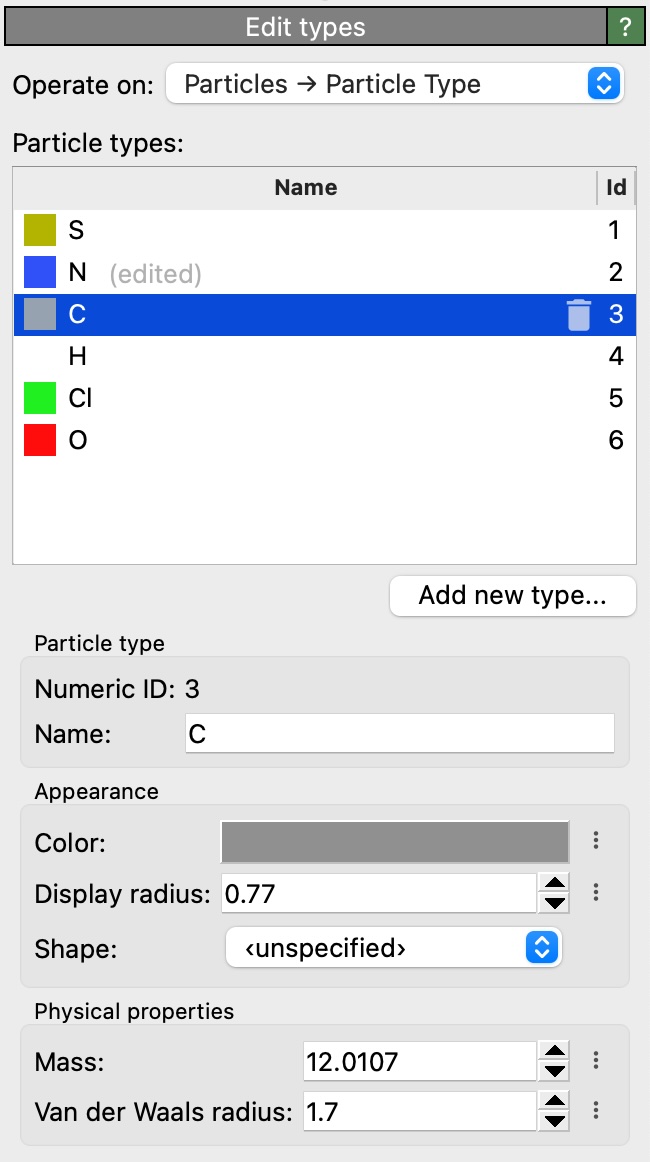
This table displays the current list of types defined for the selected property. Each row shows a type’s visualization color, name and unique numeric ID. Types you have already modified or deleted are visually marked (“edited”, “deleted”) in the list.
- Add new type…
This function lets you create a new type entry. The dialog suggests a unique numeric ID for the new type and lets you confirm or change it. A new type entry is appended to the list and can be edited like any other type.
- Type editor
When a specific type is selected in the table, the lower part of the panel shows editable fields for that type, typically including:
Name: A textual label for the type (can be empty, in which case only the numeric ID of the type is used).
Color: Display color used when visualizing elements of the type.
Display radius: Particle visualization radius (overrides the default radius setting for all particles).
Shape: Particle glyph shape.
Physical properties: Optional attributes such as Mass or Van der Waals radius, which are used by some modifiers in OVITO.
- Delete / Restore
The type table offers actions to delete a type or restore an edited type to its original state. Deleting a type removes it for downstream modifiers. Restoring a type reverts any edits you’ve made to it within the modifier.
Behavior and workflows
- Edit workflow
Insert the Edit Types modifier to override or refine the attributes of types defined in the upstream data. This is useful when you want to change display colors, radii, or names without altering the original simulation file.
- Adding new types
Use the “Add new type…” button to create a new type entry. The editor will propose a numeric ID that does not conflict with other types; you can override it if needed. You can then use the Compute property modifier to assign the newly defined type to selected particles.
- Deleting types
Removing a type definition from the type list changes how downstream visualizations and modifiers interpret the numeric type values stored with elements. For example, particles that still carry the deleted numeric ID will no longer display the deleted type’s visualization attributes. Thus, you typically want to also delete the elements of the type from the dataset. The editor offers to insert appropriate modifiers into the pipeline to also remove elements of a specified type before deleting the type definition itself.
See also
ovito.modifiers.EditTypesModifier(Python API)