Types
Added in version 3.15.0.
This page of the data inspector provides a comprehensive overview of all typed properties present in your dataset. A typed property is one where each element (particle, bond, etc.) is assigned a numeric type ID, with the corresponding type attributes stored in a separate lookup table.
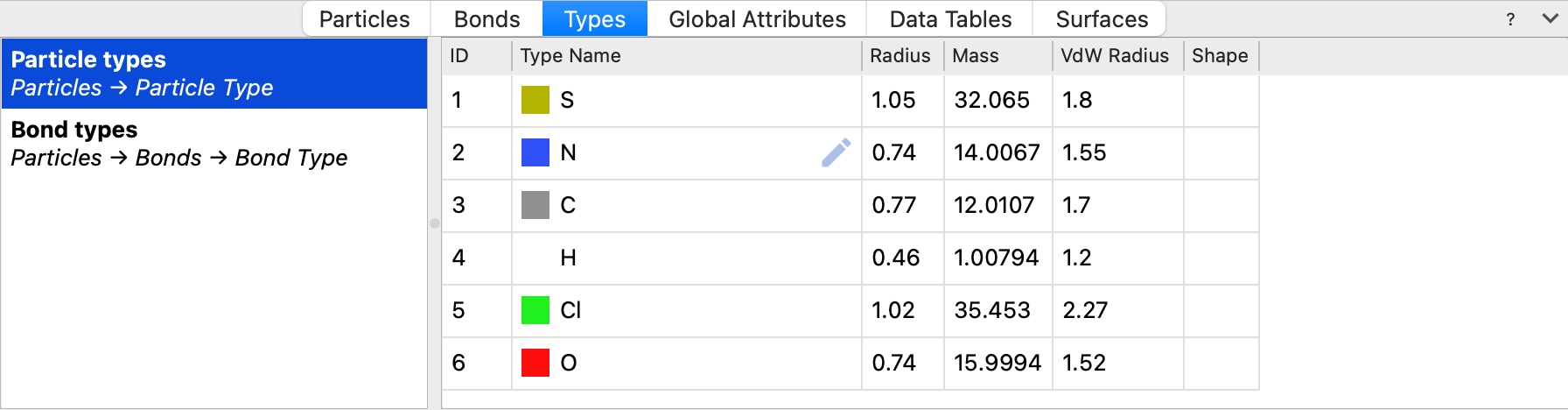
Types are typically loaded from the simulation file, but they can also be generated by certain modifiers in the data pipeline, e.g. during an atomic structure analysis.
Interface
The Types inspector page is divided into two main sections:
- Left: Property list
Lists all typed properties found in the current dataset, organized by their containing data object. For example:
Particle types - Properties associated with particles (e.g.,
Particle Type,Structure Type)Bond types - Properties associated with bonds (e.g.,
Bond Type)
- Right: Type table
Displays the list of types defined for the currently selected property. Each row represents one type and shows its attributes in columns:
ID - The unique numeric identifier of the type
Type Name - The name or label of the type (e.g., “H” for hydrogen, “Cu” for copper) and its visualization color
Additional columns - Other type-specific attributes such as:
Radius - Display radius for visualization
Mass - Atomic or molecular mass
VdW Radius - Van der Waals radius
Shape - Particle shape for rendering
Note
The information shown is read-only and reflects the state at the end of the current data pipeline. To modify individual types, or to add and remove types, insert the Edit types modifier into the data pipeline.
Functionality
- Viewing type information
Select a typed property from the left panel to display its types in the table on the right.
- Editing types
Each type entry in the table has an edit action button (pencil icon) that allows you to modify the type attributes. Clicking this button will:
Insert an Edit types modifier into your data pipeline at the appropriate position
Open the modifier’s properties panel in the pipeline editor
Select the specific type for editing
This provides a convenient way to adjust type attributes (such as colors, radii, or names). Changes made in the modifier will be reflected in the data inspector.
- Multiple typed properties
Particles and bonds can have multiple typed properties representing different orthogonal classification schemes. For instance, you might have several typed particle properties such as:
Particle Type- Chemical species or simulation-specific typesStructure Type- Local crystalline structure classification (from structure analysis)Residue Type- Type of residue in biomolecular simulations such as amino acids or nucleotides
Each property maintains its own independent type list with specific attributes relevant to that classification.