Text labels
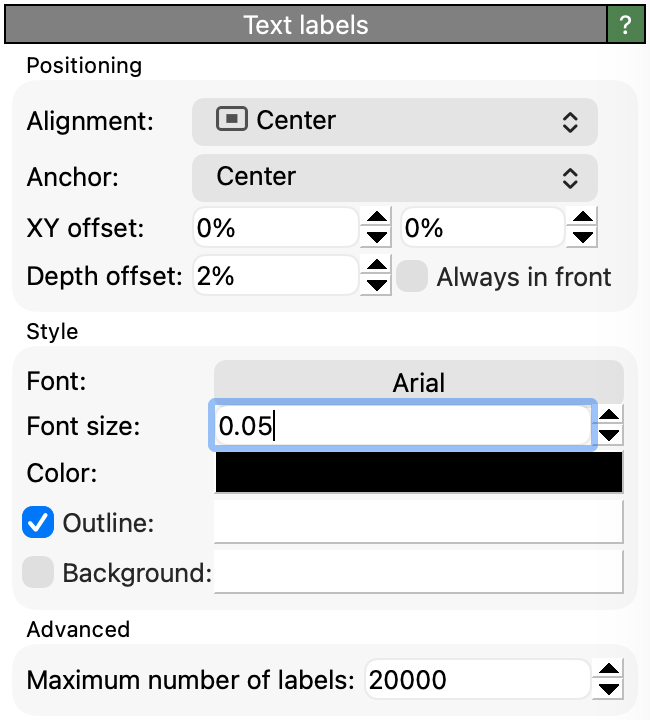
Added in version 3.16.0.
This visual element renders a text label next to every data element.
The element must be attached to a scalar property with a text data type, e.g. the Atom Name property read
from Gromacs and PDB files. The strings are displayed verbatim, and elements whose string is empty are skipped.
Turning the values of some other (non-string) property into label texts is done via the
Add text labels modifier, which also creates and manages this visual element.
The element supports labeling particles, bonds, lines, vectors, voxel grids cells, data tables, and surface meshes.
Note
The labels are placed in the three-dimensional scene as billboards that always face the camera. A label behind an opaque object is occluded by it, and each label is moved toward the camera by the rendered size of its element plus the Depth offset to prevent this occlusion. The labels keep a constant size on screen, independent of their distance to the camera. Labels belonging to objects closer to the camera are drawn on top of labels belonging to more distant objects.
Parameters
- Alignment
Selects on which side of a data element its label is placed, e.g. Top right puts the label above and to the right of the element. Together with the XY offset parameter, this controls where a label appears relative to its element.
A label that is not centered is automatically shifted, so that it is placed next to the rendered object instead of on top of it. The displacement follows the rendered size of the element:
for a particle, its rendered radius, including the radius scaling factor of the Particles element;
for a bond or a line, half the bond width or line width;
for a vector, the arrow width;
for a data table, the
RadiusorRadius of Gyrationcolumn, if the table has one – this is what lets labels sit at the edge of the object each row stands for, as described above.
Voxel grids and surface meshes report no such size, so their labels always stay close to their anchor points.
Centered labels are unaffected by the radius. They still have the XY offset applied to them.
Only objects that are visible in the scene apply the radius shift to their labels. If the visual element of the object is turned off, the labels stay on their anchor points.
- Anchor
Selects at which point along an elongated data element its label is anchored: Base, Center (the default) or Head. This parameter appears only for bonds and vectors.
For a bond, Base and Head refer to its first and its second particle. The anchor points follow the visible part of a bond: a bond cylinder extends all the way to the centers of the two particles, but its ends are hidden inside the particle, so the anchors are pulled in by the rendered particle radii as long as the Particles element is turned on. With particles of different size, the Center anchor therefore shifts to the visually perceived center of the bond.
For a vector, Base and Head refer to the start and the end point of the arrow as it is rendered, which follows the Alignment, Scaling factor, Reverse direction and Offset settings of the Vectors element. The anchor points keep following those settings even while that element is turned off; only the displacement described under Alignment above is dropped in that case.
The Alignment parameter above then still decides on which side of that anchor point the text is placed.
- XY offset
An additional displacement applied to all labels, given as a percentage of the width and the height of the rendered image, respectively. Use it to move the labels clear of the glyphs they annotate. Positive values shift the labels to the right and up.
- Depth offset
The extra distance by which each label is lifted toward the camera beyond the rendered radius of its target object, given as an absolute length in the units of your simulation data (0.05 by default). The lift prevents a label from being clipped by the glyph it annotates. Increase the value if labels still intersect, for example when a custom particle shape extends beyond the nominal particle radius.
Because this is an absolute distance and not a fraction of the object’s radius, it also lifts the labels of objects that have no radius at all, such as voxel grid cells and surface mesh vertices. Raise it if such labels are swallowed by the surface they sit on.
This setting is disabled while Always in front is enabled.
- Always in front
Snaps the labels in front of all other objects in the scene: depth testing is disabled entirely, so no scene geometry ever occludes a label. While this option is enabled, the Depth offset setting is disabled.
- Font / Font size
The typeface and size of the label text. The font size is given as a fraction of the height of the rendered image, so labels keep the same relative size independent of the output resolution.
- Color
The text color of the labels.
- Outline
Paints an outline in selected color around the label text, which makes labels easier to read on a busy background.
- Background
Paints a filled rectangle in the selected color behind each label.
- Maximum number of labels
A safety limit on the number of labels, 20,000 by default. A large number of labels might make OVITO slow to respond. This depends on your hardware. If more labels than this would be drawn, none are drawn at all and the visual element reports a warning.
See also
Add text labels modifier
ovito.vis.TextLabelsVis(Python API)