User-defined modifiers
OVITO Pro Python scripts
If none of OVITO’s built-in modifiers does what you need, you can write your own modifier in Python. A user-defined modifier is inserted into a pipeline just like a built-in one: it receives the data produced by the preceding pipeline stages, modifies or analyzes it, and passes the results on to the subsequent stages. In OVITO Pro, user-defined modifiers can expose parameters that the user can adjust interactively, with immediate updates of the results in the viewports.
Two programming interfaces
A single Python function, described on this page. Use it if your modifier
processes each frame of a trajectory independently, and
has no or only simple parameters.
A Python class derived from ModifierInterface. Use it if your modifier
needs access to several frames of a trajectory or to additional input files,
should cache results computed once for the entire trajectory, or
has parameters that OVITO Pro should present in a well-designed user interface.
Please read this page first even if you plan to use the class-based interface, because it introduces concepts that apply to both. Also read the general rules for Python extensions.
The modify function
In its simplest form, a user-defined modifier is a Python function with two parameters:
import numpy
from ovito.data import DataCollection

def modify(frame: int, data: DataCollection):
    energies = data.particles["peatom"]

    # Output a new per-particle property: the energy relative to the mean energy.
    data.particles_.create_property("Relative Energy", data=energies - numpy.mean(energies))

    # Output a global attribute: the number of particles with an energy above -4 eV.
    data.attributes["High Energy Count"] = numpy.count_nonzero(energies > -4.0)
The pipeline system calls this function to process one frame of a trajectory at a time, passing in two arguments:
- frame:
The zero-based number of the trajectory frame being processed.
- data:
A
DataCollectioncontaining the data produced by the upstream pipeline for that frame.
The function modifies the DataCollection in place, as described in Manipulating data, and doesn’t return anything.
In this example, it outputs a new particle property and a global attribute. You can find more complete examples in the
code examples section.
Inserting the modifier into a pipeline
- In OVITO Pro OVITO Pro
Insert a Python script modifier into the pipeline using the pipeline editor, and enter the function in its code editor. The function must be named
modify. OVITO Pro runs the function whenever the pipeline gets evaluated and immediately shows the results in the viewports.- In a Python script Python scripts
Append the function to the pipeline’s
modifierslist. The function may have any name in this case.from ovito.io import import_file pipeline = import_file("input/simulation.dump") pipeline.modifiers.append(modify) data = pipeline.compute() print(data.attributes["High Energy Count"])
The pipeline system calls your function whenever you request the pipeline’s output, e.g. using
compute(),export_file(), orrender_image().
Outputting computation results
A modifier should store all computation results in the DataCollection. There they are available to subsequent pipeline stages,
you can access them via Pipeline.compute(), and OVITO Pro shows them in its data inspector.
Choose the form of output that matches your results:
Per-particle quantities go into a new particle property. They can be exported to particle files, e.g. in XYZ format, and used for coloring or selecting particles.
Scalar quantities go into a global attribute. The time evolution of attributes can be exported with the
txt/attrformat (see Writing output files).Tabulated data, e.g. histograms, go into a
DataTable, which OVITO Pro displays as a chart:from ovito.data import DataTable def modify(frame: int, data: DataCollection): counts, bin_edges = numpy.histogram(data.particles["peatom"], bins=40) table = data.tables.create(identifier="energy-histogram", title="Energy distribution", plot_mode=DataTable.PlotMode.Histogram) table.x = table.create_property("Energy", data=0.5 * (bin_edges[1:] + bin_edges[:-1])) table.y = table.create_property("Count", data=counts)
Modifier parameters
A modifier function can have parameters in addition to frame and data. Define them as keyword parameters with default values:
def modify(frame: int, data: DataCollection, threshold: float = -4.0):
    energies = data.particles["peatom"]
    data.particles_.create_property("Selection", data=(energies > threshold))
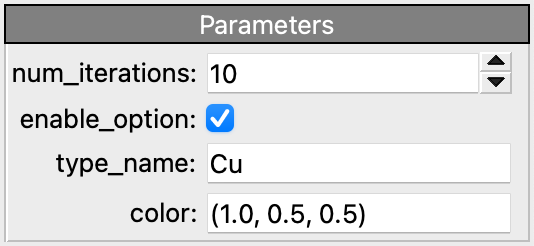
OVITO Pro displays an input field for each parameter in the panel of the Python script modifier. Whenever the user changes a value, the pipeline
system calls the function again with the new value. Parameters of type int, float, bool, and str are displayed as corresponding input widgets;
values of other types are displayed in their printable form.
When the session is saved, the current parameter values get stored in the session state file.
If the default value of a parameter is an OVITO object, e.g. a visual element, OVITO Pro displays the object’s own settings panel. This is how a modifier can provide a visual element for the data it creates, whose settings the user can adjust and which are preserved across invocations of the function:
from ovito.vis import VectorVis

def modify(frame, data, vis=VectorVis()):
    vectors = data.particles_.create_property('My Vectors', data=...)
    vectors.vis = vis
In a Python script, you can set a parameter to a different value using functools.partial:
import functools

pipeline.modifiers.append(functools.partial(modify, threshold=-3.8))
Tip
The class-based interface gives you more control over parameters, e.g. value ranges, labels, and the layout of the user interface, see Parameters of Python extensions.
One-time initialization
When processing a trajectory, the pipeline system calls the modifier function at least once for every frame. Expensive operations that don’t depend on the frame, e.g. loading static reference data from a file, should therefore happen outside the function. The following modifier computes displacements with respect to a reference configuration, which gets loaded only once, when the code runs for the first time:
from ovito.pipeline import FileSource

# Load the reference particle coordinates with the help of a temporary FileSource object:
src = FileSource()
src.load("input/simulation.0.dump")
reference = src.compute()

def modify(frame, data):
    index_mapping = reference.particles.remap_indices(data.particles)
    displacements = data.particles.positions - reference.particles.positions[index_mapping]
    data.particles_.create_property('Displacement', data=displacements)
In OVITO Pro, the top-level statements of the code get executed when you commit the code in the code editor (see Code outside of functions). For modifiers that need to access other trajectory frames or auxiliary input files, the class-based interface provides a better solution, see Additional input slots.
Using built-in modifiers
Your modifier can employ OVITO’s built-in modifiers as building blocks by applying them to the data collection:
from ovito.modifiers import ExpressionSelectionModifier

def modify(frame: int, data: DataCollection):
    # Use a built-in modifier as a building block of a custom algorithm:
    data.apply(ExpressionSelectionModifier(expression="peatom > -4.0"))
    data.attributes["Selected Fraction"] = data.attributes["ExpressionSelection.count"] / data.particles.count
Long-running computations
If your modifier performs a lengthy computation, report its progress using yield statements, as described in Long-running computations.
This also allows OVITO Pro to interrupt the computation when it becomes obsolete.